Google Ads
Google Ads recommendations: which to apply, which to dismiss, and how to tell
By Alparslan Kapani · · 8 min read
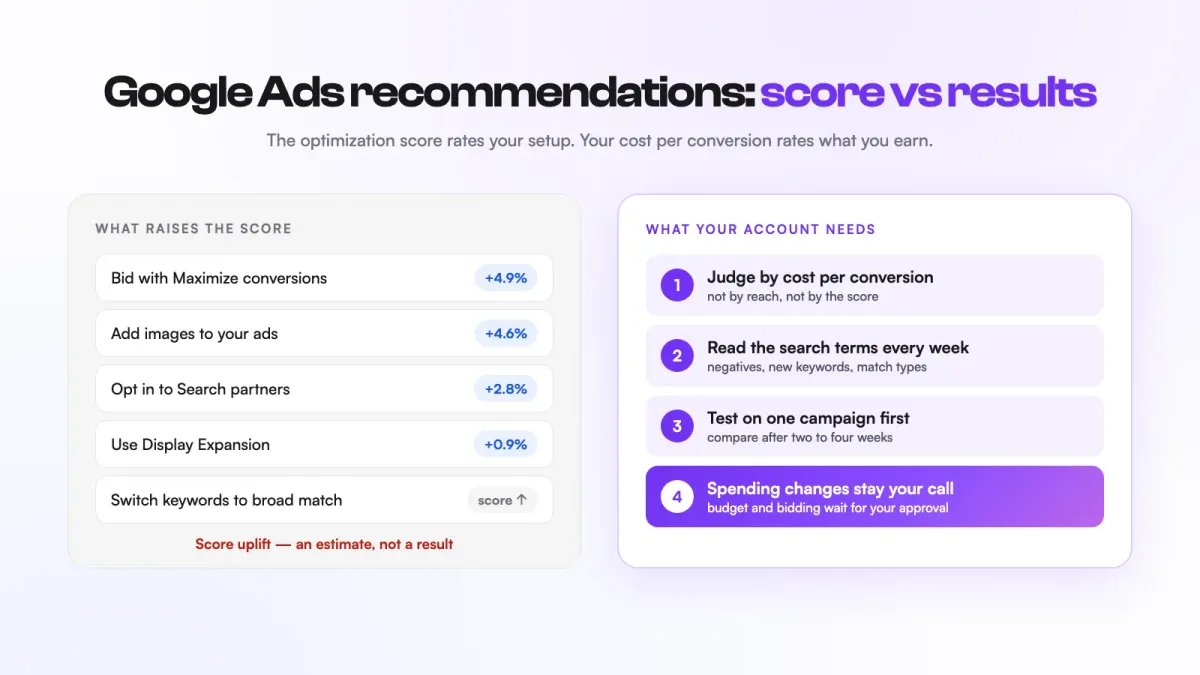
Google Ads recommendations are suggestions Google generates for your account: change a bid strategy, add keywords, turn on a network, add assets. Some are genuinely useful. But the number next to each one is an estimated lift in your optimization score, not a promise of more conversions, and a fair share of recommendations widen your reach more than they improve your results. Judge each one by what it does to your cost per conversion, apply the ones that pass, and dismiss the rest without guilt.
Key takeaways
- The optimization score is, in Google’s words, an estimate of how well your account is set to perform. It rates your setup, not your results.
- Applying a recommendation and dismissing it both change the score. You don’t have to say yes to keep a healthy score.
- Recommendations that add reach — Search partners, Display Expansion, broader location targeting, broad match without review — deserve the most caution.
- Some are worth a closer look: Maximize conversions on an account with solid conversion data, and fixes to conversion tracking.
- Keep auto-apply off for anything that changes spend or reach. Test changes on one campaign and compare cost per conversion after two to four weeks.
What are Google Ads recommendations?
Recommendations are the suggestions on the Recommendations page of your Google Ads account (and in cards across the interface). Each one comes with a short reason, an Apply button and a percentage: the estimated increase in your optimization score if you accept it.
Here are four that showed up in one of the accounts I manage, exactly as Google displays them:
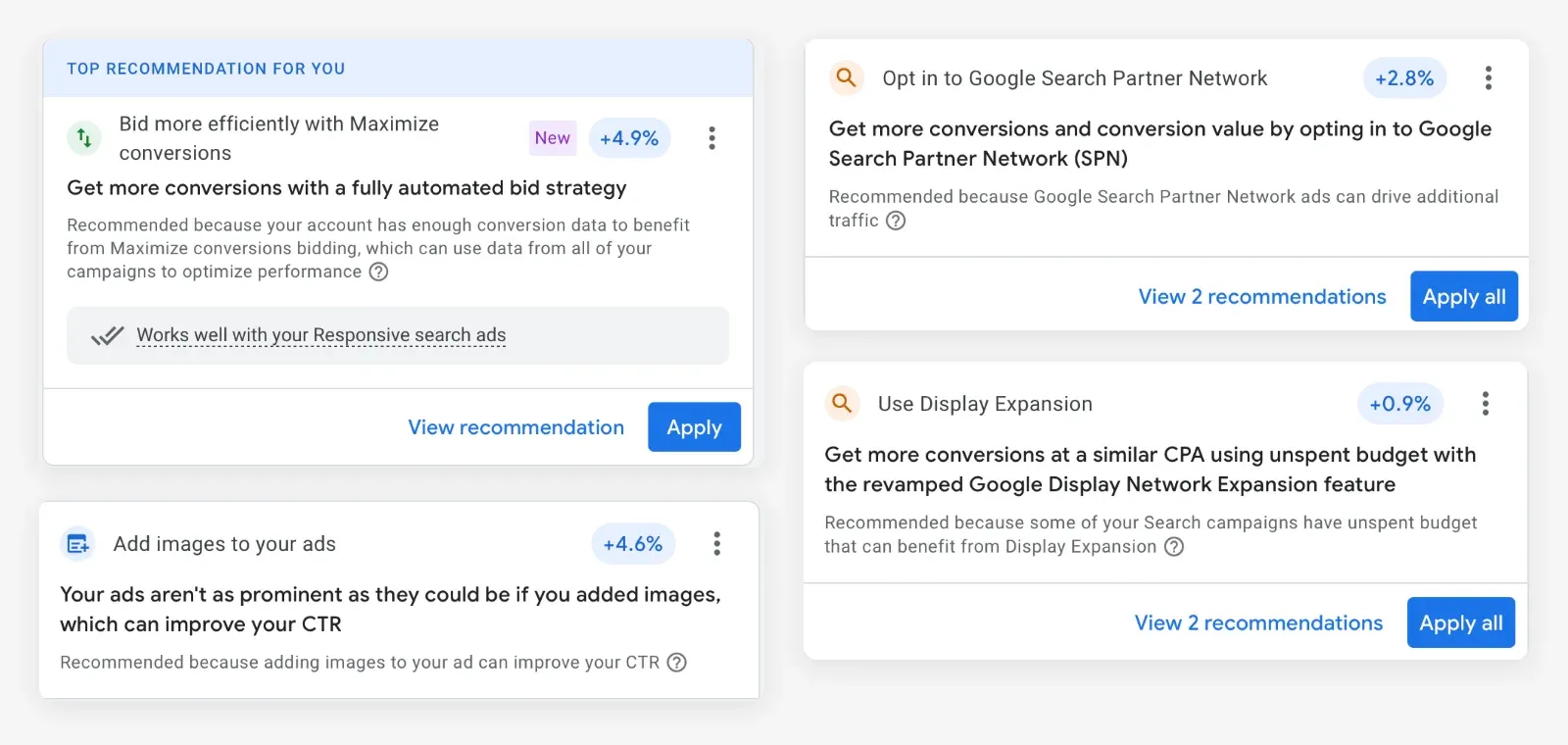
Real recommendation cards from a Search account. No account details are shown.
Notice the shape: a confident headline (“Get more conversions…”), a reason, a percentage, and one button. It’s built to be applied quickly. My job, and yours, is to slow down for ten seconds and ask what each one actually changes.
What does the Google Ads optimization score actually measure?
Google’s own definition is precise: optimization score is “an estimate of how well your Google Ads account is set to perform”, on a scale from 0 to 100%. It’s a measure of setup, not of results. An account at 100% can lose money; an account at 70% can be the most profitable one you run.
Two details on that help page matter more than the score itself:
- “Applying or dismissing these recommendations changes the overall optimization score of your account.” Dismissing is a real answer. If a recommendation doesn’t fit, dismiss it and the score moves on.
- The percentage on each card is a score uplift that “reflects the estimated impact of the recommendation on overall campaign metrics, when possible.” Estimated is the word to hold on to.
So a high score is nice to see. It’s just not the goal. Your cost per conversion is.
Whose interest does a recommendation serve?
Here’s the question I keep coming back to, and I think it’s a fair one rather than an accusation: recommendations are written for every account at once, by the platform that is paid for every click. That doesn’t make them wrong. Plenty are good advice, and Google has every reason to want your ads to work, or you’d stop advertising.
But “works” can mean different things. A recommendation that brings more traffic at a similar cost per click looks like a win from the outside. From your side, the question is narrower: does it bring more conversions at a cost per conversion you can live with? Reach is the means. Conversions are the point.
That’s the lens for everything below.
Which Google Ads recommendations should you usually dismiss?
These are the ones I dismiss most often after checking them. Not always — your account may be the exception — but often enough that I’d want to see real evidence before applying them.
Opt in to the Search Partner Network
The card says opting in can bring “more conversions and conversion value.” Search partners are other sites that show Google search ads. In the accounts I’ve checked, opting in raised the optimization score far more often than it improved results: the extra clicks tended to convert worse than clicks from Google Search itself. If you try it, segment your results by network afterwards and compare cost per conversion line by line.
Use Display Expansion on a Search campaign
This one says unspent budget could go to the Display Network “at a similar CPA.” A Search campaign exists because someone typed a question you can answer. Display reaches people who were reading something else. In my experience it rarely beats Search intent for leads, and it quietly turns a clean Search campaign into a mixed one that’s harder to read. If budget is unspent, I’d first ask why — maybe the keywords are too narrow — before sending it to another network.
Location targeting: “presence or interest”
Not a card on this page, but a choice every campaign makes. Google’s help page calls “Presence or interest” the “default and recommended option”: it reaches people in your area and people who’ve shown interest in it. For a business that serves a specific area — a clinic, a contractor, a local service — I usually switch it to “Presence”: people who are in, or regularly in, the places you serve. Interest-only clicks are exactly the ones that can’t buy from you.
Switch keywords to broad match
Broad match isn’t wrong. Early on it can be useful: you discover how people actually search for what you sell, including phrasings you’d never have guessed. The trouble comes later. Left on broad match without anyone reading the search terms, an account fills up with wasteful searches — related-sounding, not buying. Broad match works when someone reads the search terms report every week, adds negatives and tightens match types once the converting searches are clear. Without that routine, it’s the most expensive recommendation on the list.
Add images to your ads
The card says images can make your ads more prominent and improve click-through rate. Possibly — and if you have good images ready, it costs little to try. But in Search-only campaigns I’ve rarely seen images move cost per conversion, which is the number that matters. Treat it as a low-priority test, not a fix.
Audience warnings that “targeting narrows your reach”
When you set an audience to Targeting (only people in that audience can see the ad), Google warns that it limits your reach. It does — that’s the point. Observation collects data on an audience without restricting who sees the ad. Neither is right by default: narrow when the data shows an audience converts far better, observe while you’re still learning. A warning about reach isn’t a reason to undo a targeting decision that works.
Which recommendations are worth a closer look?
Being fair matters here, because some recommendations are good and dismissing everything is as lazy as applying everything.
- Maximize conversions (the top card in the screenshot). If your account has enough conversion data and your conversion tracking is trustworthy, an automated bid strategy can do better than manual bidding. The two conditions are the whole story: check that conversions are counted correctly, then try it on one campaign and compare.
- Conversion tracking fixes. Anything that flags broken or missing conversion tracking deserves attention first. Every other decision in your account depends on it.
- Sitelinks. Extra links under your ad that go straight to a specific page: a service, your prices, a booking form. A searcher who wants exactly that gets a shortcut, and your ad takes up more space on the results page. They cost nothing to add, and the assets report shows which ones get clicked.
- Other missing assets. Callouts and structured snippets give your ad more room and more reasons to click. Cheap to add, easy to judge.
- Budget-limited campaigns with a good cost per conversion. If a campaign is limited by budget and converts at a cost you’re happy with, a higher budget may simply buy more of something that works. That’s a business decision, so make it yourself.
Should you turn on auto-apply recommendations?
Google offers to apply eligible recommendations automatically. Its help page says that once you switch it on, “the recommendations will apply regularly”; you can review what was applied in the History tab and turn it off at any time.
My view: keep auto-apply off for anything that changes your spend or your reach — bidding, budgets, networks, keywords and match types. Those are exactly the changes you want to see and approve. If you use it at all, limit it to low-risk categories, and check the History tab every week so nothing changes behind your back.
How to judge any Google Ads recommendation in two minutes
When a new card appears, run it through five questions:
- Does it change spend or reach? More networks, broader matching, wider locations, bigger budgets: slow down. Asset and tracking fixes: usually fine.
- What’s the evidence in my account? “Your account has enough conversion data” is a claim you can check. Look at the actual conversions and their quality.
- Can I test it on one campaign? Apply it where the impact is contained, not across the account.
- What will I compare, and when? Write down today’s cost per conversion and conversion volume; look again after two to four weeks.
- Would I make this change if there were no score? If the only argument is the percentage, dismiss it.
If you’re newer to campaign setup, my Google Ads setup guide covers match types, networks and location settings step by step, and what Google Ads really costs helps you decide what cost per conversion you can afford.
Where does Convertus fit?
Convertus.ai is an AI tool for Google Ads automation and website personalization. The part that matters here: it does the weekly reading for you, and it judges every change by your conversions.
- Campaigns are built Search-only: Display and Search partners off, and location targeting set to people in the areas you choose.
- Every week, it reviews the search terms and performance and proposes the changes: negative keywords, new keywords from search terms that convert, match-type changes, pausing keywords that waste money, rewriting weak headlines in your live ads, and audience bid and mode changes.
- You decide what applies automatically, category by category. Budget and bidding changes always wait for your approval.
- Every change is logged, with its impact week over week.
It works in your own Google Ads account, connected from the Convertus panel with your Google sign-in. If you’ve been applying recommendations because reading every report every week isn’t realistic, that’s exactly the job it takes off your desk. And if you’re curious how this differs from connecting an AI chat to your account, I wrote about the limits of Google Ads MCP setups.
Frequently asked questions
Does dismissing a Google Ads recommendation lower my optimization score?
No. Google's help page says applying or dismissing a recommendation both change your optimization score. Dismissing one you've judged wrong for your account is a legitimate way to handle it, and the score recognises that.
Is a 100% optimization score worth chasing?
Not for its own sake. Google describes the score as an estimate of how well your account is set to perform, not a measure of results. Your cost per conversion and your conversion volume tell you how the account is actually doing.
Should I turn off auto-apply recommendations?
For anything that changes your spend or your reach, I would. Auto-apply applies eligible recommendations regularly without asking each time. You can review what was applied in the History tab and switch it off at any time in the auto-apply settings.
Can broad match work in Google Ads?
Yes, especially early on, when you're still discovering how people search for what you sell. It only works if someone reads the search terms report every week, adds negatives and tightens match types once the converting searches are clear.